
Get Umbofleet running on your WordPress site in about ten minutes, then give your fleet managers the admin portal and your drivers the app.
What you need
- A WordPress site you can sign in to as an administrator (WordPress 6.0 or later, PHP 8.1 or later). Any standard WordPress hosting will do.
- Your site needs to be able to send email, because drivers and managers are invited by email. Most hosts do this out of the box; if yours doesn’t, see Troubleshooting.
Install the plugin
- Download the free plugin from umbofleet.com.
- In WordPress, go to Plugins, then Add New, then Upload Plugin.
- Choose the umbofleet.zip file, then Install Now, then Activate.
Umbofleet now has its own menu in WordPress, with two items: Setup and Login.
The Setup page
Go to Umbofleet, then Setup. Everything you need to hand out is here:
- App address is one link for everyone. Fleet managers who sign in get the admin portal, where they run the fleet. Drivers get the app, made for their phone. Use Copy and send it to them, or put it on your intranet. Drivers can add it to their phone’s home screen so it opens like any other app.
- Sign-in page is the Umbofleet sign-in screen on its own, with the “Forgotten your password?” link.
- Sign-in button for your website: put the shortcode
[umbofleet_login]on any page (for example a “Driver login” page) to show a sign-in button. You can change the wording withlabel="Driver login", the wording for people already signed in withopen_label="Go to my fleet", and the position withalign="center". - Company is the name shown in the admin portal, the app, emails and reports. It starts as your site’s name; change it here.
Open the admin portal
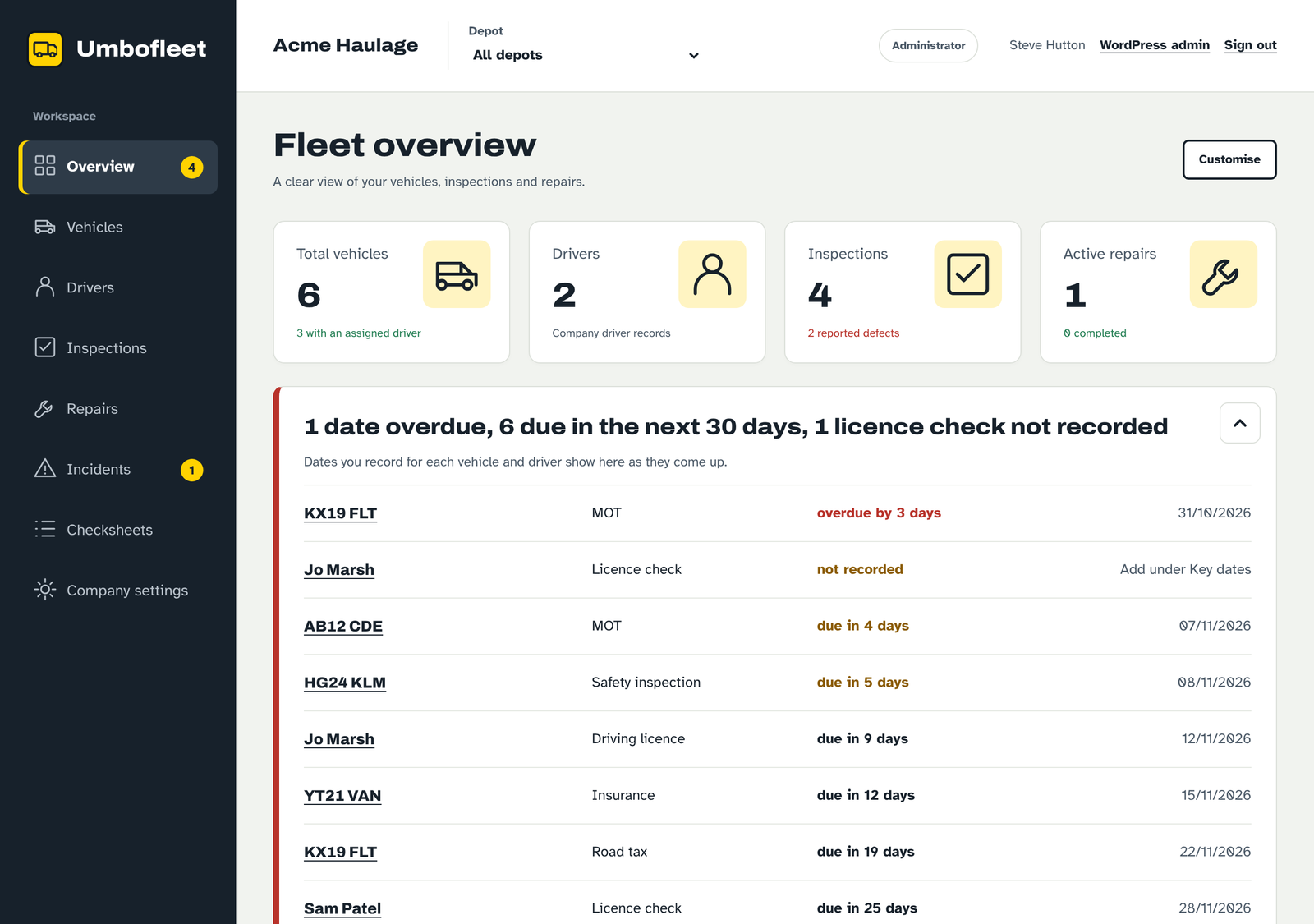
Choose Login in the Umbofleet menu (or open the app address). You’ll see the Fleet overview: your vehicles, drivers, inspections and repairs, and anything that’s due.
Next steps
- Add your vehicles.
- Add your drivers and invite them to the app.
- Assign drivers to vehicles, so each driver sees the vehicles they drive.