
Drivers do their checks in the Umbofleet app on their phone. They get in with an invitation email.
Send the invitation
- When you add a driver, leave Email them an invitation to sign in now ticked.
- For a driver you’ve already added, open their card on the Drivers page and choose Invite driver.
Their card then shows Invitation sent. If they lose the email or it runs out, choose Resend invitation.
What the driver does
- They get an email called Your Umbofleet driver invitation from your company, with a Set my password button.
- They choose a password of at least 12 characters. The link works once, for 24 hours.
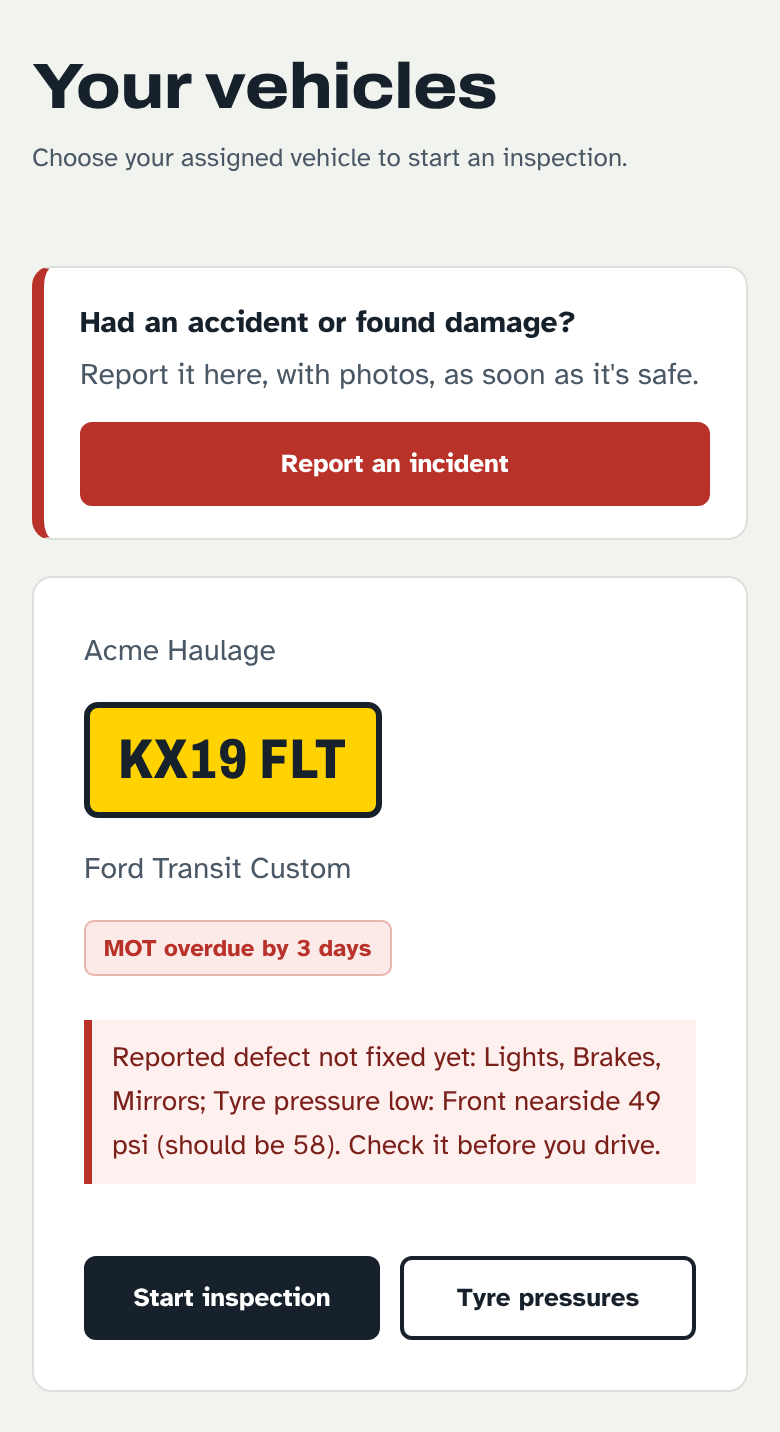
- They’re taken straight to Your vehicles, showing the vehicles they’re assigned to.
Add it to the home screen
So it opens like an app:
- iPhone (Safari): tap the Share button, then Add to Home Screen.
- Android (Chrome): tap the menu (three dots), then Add to Home screen or Install app.
Next time they just open it and sign in with their email and password. Drivers never see the WordPress dashboard.
Before you invite
Make sure each driver is assigned to their vehicles. A driver with no vehicles sees “No vehicles are assigned to you yet. Please contact your fleet manager.”
If invitations don’t arrive, see Troubleshooting.