
Add each driver once. Give them an email address and they can sign in to the app to do their checks.
Add a driver
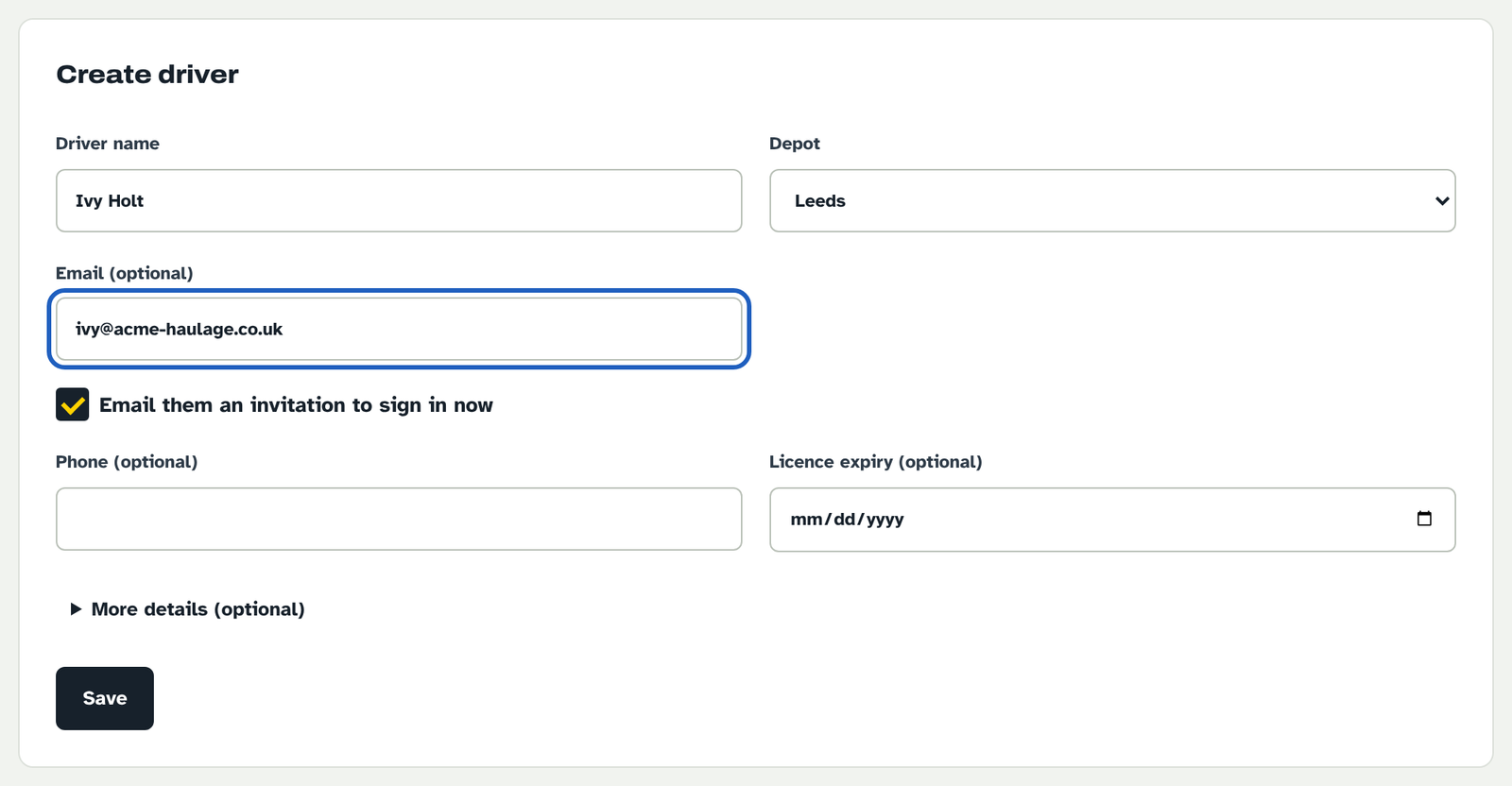
- Go to Drivers and choose Add driver.
- Enter the Driver name, and choose a Depot if you use depots.
- Enter their Email. It’s what they sign in with. A driver without an email address can’t use the app, but you can still keep their record.
- Leave Email them an invitation to sign in now ticked to send their invitation straight away, or untick it and invite them later.
- Add Phone and Licence expiry if you have them, and open More details (optional) for licence categories, licence checks, Driver CPC, tacho card and employment dates.
- Choose Save.
Import drivers
Go to Drivers and choose Import drivers. It works the same way as importing vehicles: paste your rows or upload a CSV file, choose Check rows, then import. Download the template shows the columns, such as name, email, depot, licence expiry, next licence check and CPC expiry.
The driver card
Each driver’s card shows whether they can sign in yet:
- Not invited yet: they have no sign-in. Choose Invite driver.
- Invitation sent: waiting for them to set their password.
- Invitation expired: the 24 hours ran out. Choose Resend invitation.
- Active: they’ve signed in.
From the card you can also Edit record, Assign vehicles, and record that they’ve left with Driver has left. A driver who leaves can’t sign in any more, is taken off their vehicles, and keeps their name on their past checks.
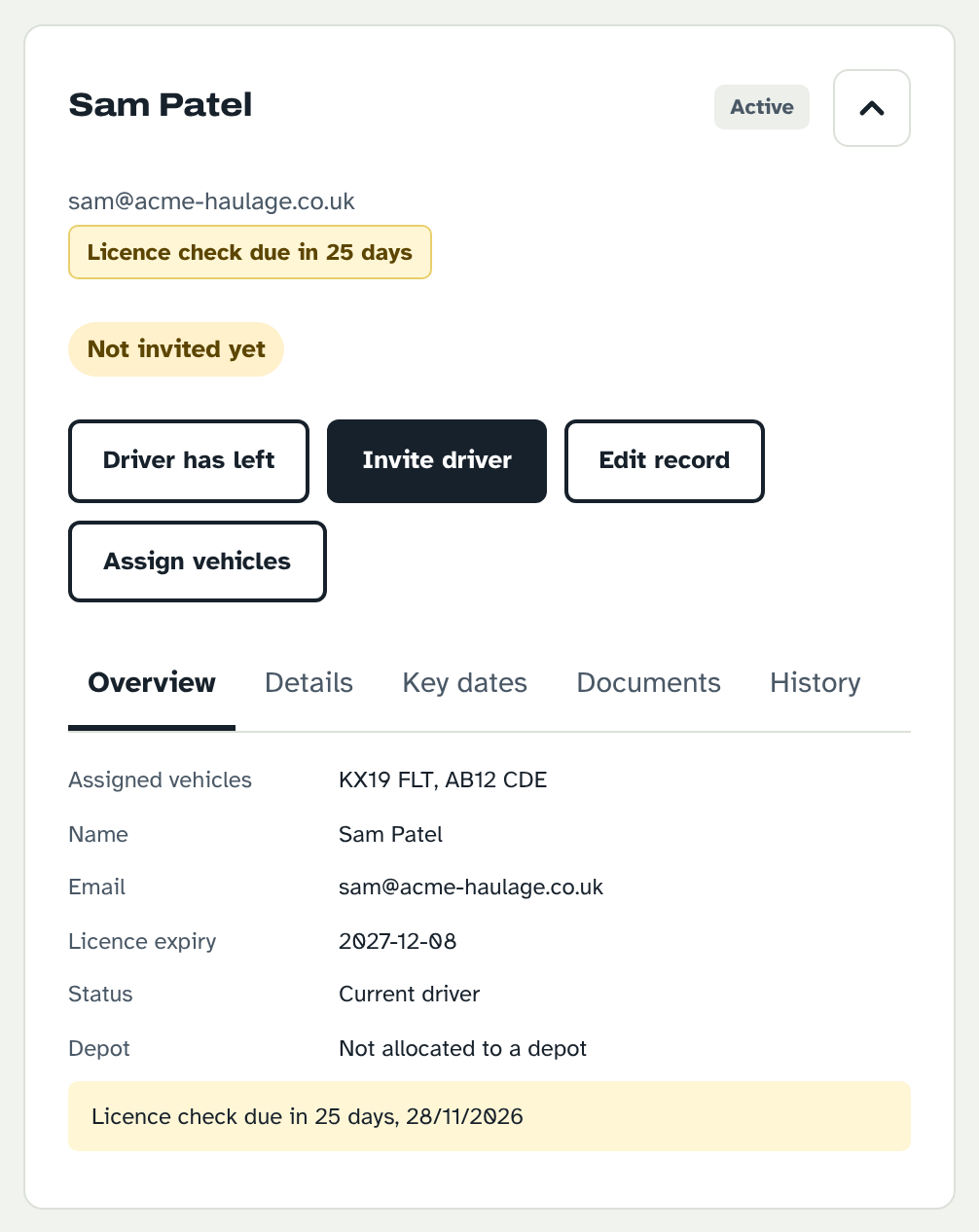
Licence checks. Drivers with no licence check recorded are flagged on the Fleet overview, so none slip through. You can turn this off in Company settings, under Alerts and reminders.