
Add vehicles one at a time, or bring your whole fleet in from a spreadsheet.
Add a vehicle
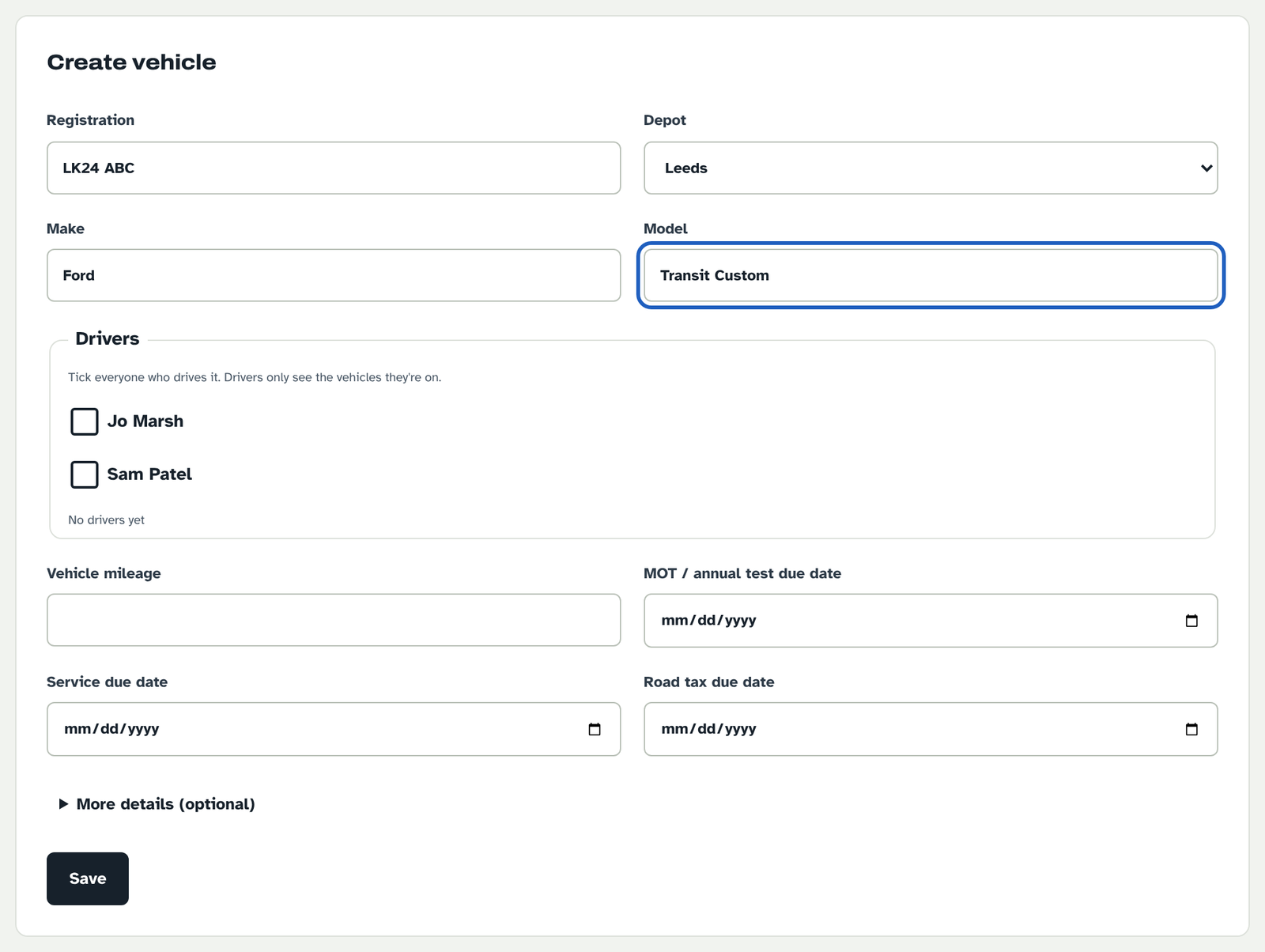
- Go to Vehicles and choose Add vehicle.
- Enter the Registration, and choose a Depot if you use depots.
- Fill in what you know: Make, Model, mileage and the key dates (MOT / annual test due date, Service due date, Road tax due date).
- Tick the Drivers who use it. Drivers only see the vehicles they’re ticked on.
- Open More details (optional) for the rest: fleet number, vehicle type, VIN, Euro emissions status, revenue weight, wheel plan, engine size, CO2, the date the logbook (V5C) was issued, insurance renewal, safety inspection (PMI), tachograph calibration, LOLER and notes.
- Choose Save.
Choose the vehicle type. Under More details, set Vehicle type to Car, Van, HGV (lorry), Trailer or Bus or coach. It decides which daily checksheet the driver gets: HGVs get the HGV check (and can check the trailer they’re towing in the same visit), and buses and coaches get the passenger checks.
Import from a spreadsheet
- Go to Vehicles and choose Import vehicles.
- Copy the rows from Excel or Google Sheets, including the heading row, and paste them in. Or choose Upload a CSV file. If you’re starting from scratch, use Download the template.
- Choose Check rows. You’ll see what each row will do (add, update, or a problem to fix) before anything is saved.
- Choose Import to save them.
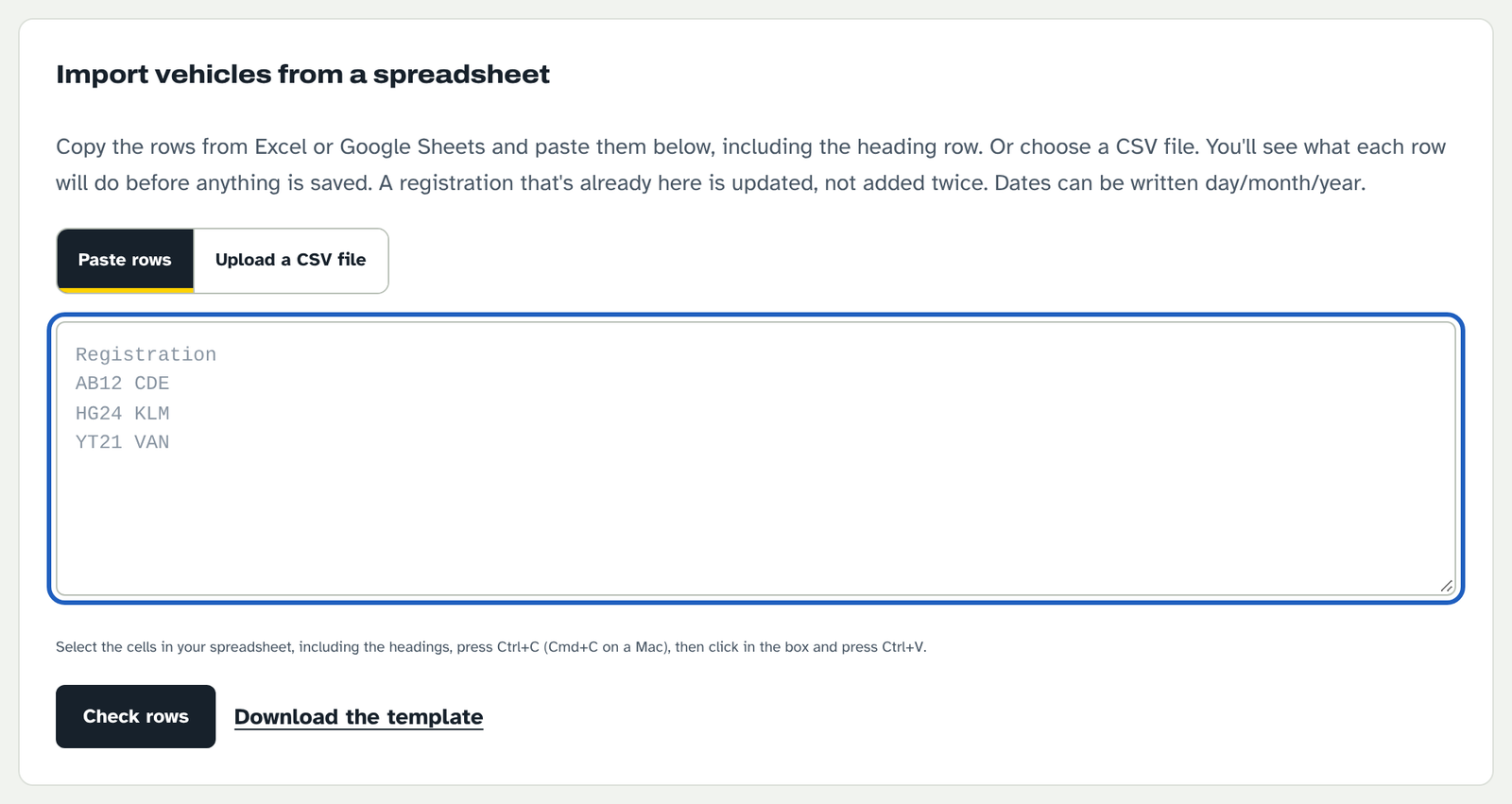
A registration that’s already in Umbofleet is updated rather than added twice, so you can import the same list again later. Dates can be written day/month/year. In the Driver column you can list several drivers, separated by a semicolon.
The template has columns for make, model and the key dates: MOT due, Road tax due, Service due, insurance, PMI, tacho calibration and LOLER. With Umbofleet Plus, make, model, the MOT date and the road tax date are looked up from DVLA and DVSA records after the import, so the template leaves them out. You still add service and the other dates yourself.
The vehicle card
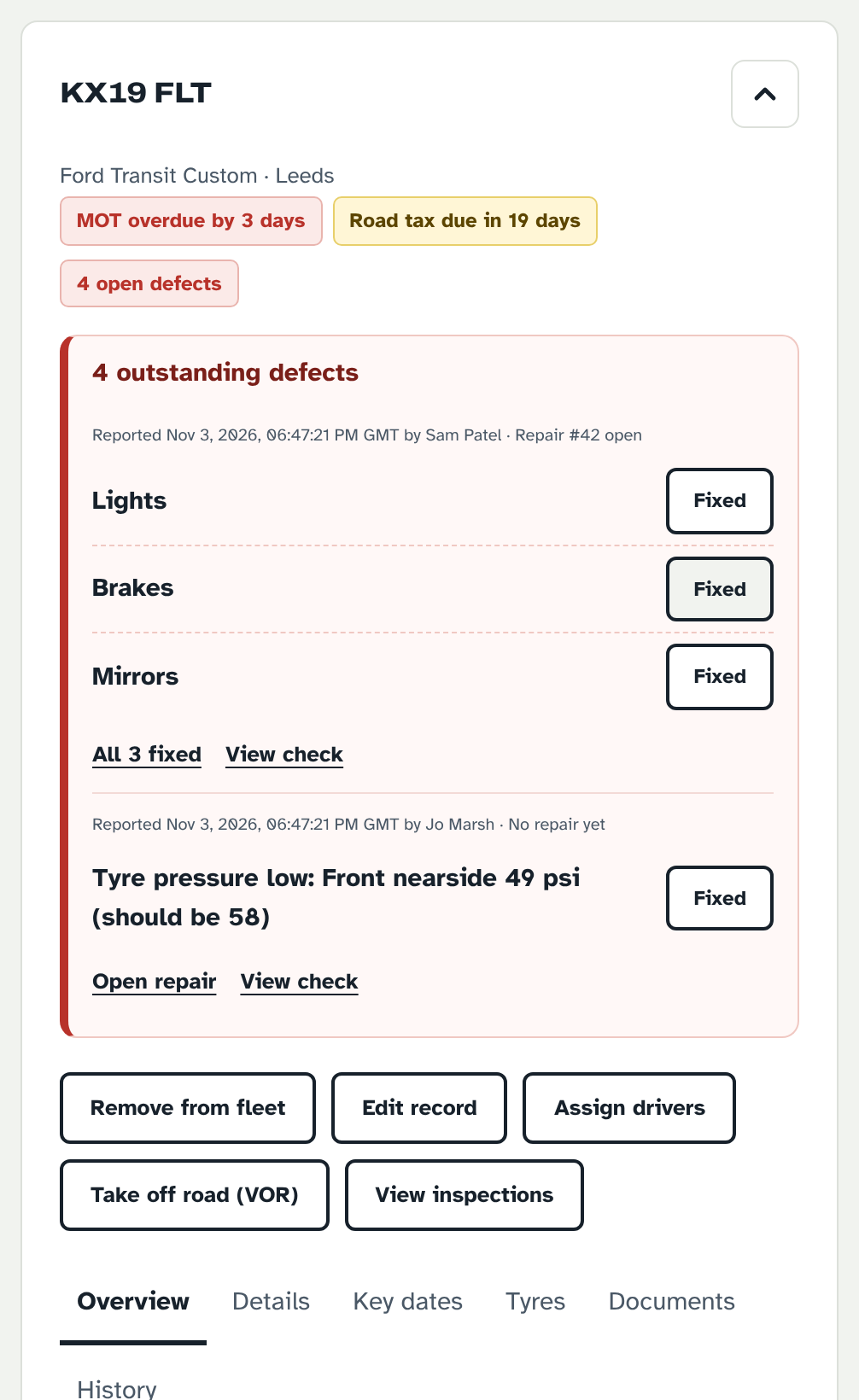
Each vehicle has a card on the Vehicles page. Open it to see its due dates, open defects and latest check, and to:
- Edit record to change any details.
- Assign drivers to choose who drives it.
- Take off road (VOR) when it mustn’t be used. Its drivers see “Off road: don’t drive it” until you choose Back on the road.
- View inspections to see every check on it.
- Remove from fleet when it’s sold, scrapped or returned. It moves to Off fleet with its checks and repairs kept, and can be brought back.
The tabs on the card hold its Details, Key dates, Tyres, Documents and History.
With Umbofleet Plus, choose Look up registration when adding a vehicle and the make, model, MOT date, road tax date and mileage fill themselves in from DVLA and DVSA records. An import then only needs a list of registrations. See Getting started with Umbofleet Plus.